
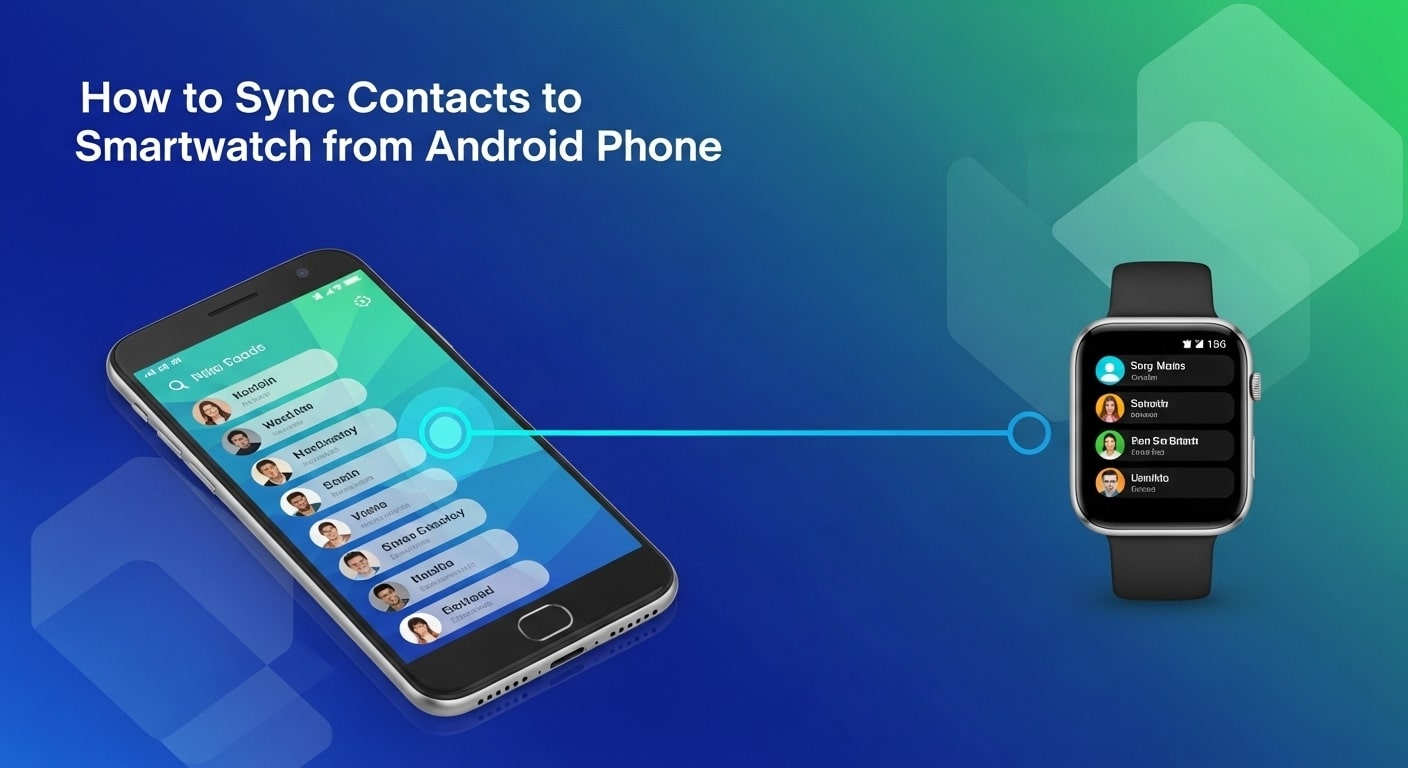
Have you ever wanted to see your contacts right on your smartwatch without pulling out your phone? Imagine being able to call or message anyone with just a few taps on your wrist.
Syncing your contacts from your Android phone to your smartwatch makes this possible—and it’s easier than you think. In this guide, you’ll discover simple steps that will save you time and keep you connected, no matter where you are. Ready to unlock the full power of your smartwatch?
Let’s dive in.
Credit: support.google.com
Prepare Your Devices
First, check if your smartwatchworks with your Android phone. Not all devices can connect. Visit the watch maker’s website for a compatibility list. Make sure both devices use the same Bluetooth versionor connection type.
Next, update the softwareon both devices. Open the settings on your phone and watch. Look for system updates. Download and install any available updates. This step helps fix bugs and improves syncing.
Finally, charge both devices fully. A low battery can stop syncing. Plug your phone and watch into a charger. Wait until both show 100% battery. This ensures the process won’t be interrupted.
Credit: www.conversion-x.tech
Connect Smartwatch To Android Phone
First, turn on Bluetoothon both your Android phone and smartwatch. Go to the phone’s settings and find the Bluetooth option. Tap to enable it. Then, do the same on your watch.
Next, pair the devices. On your phone, look for your watch name under available devices. Tap it to start pairing. A code may appear on both screens. Check if the codes match and confirm.
Finally, open the companion appmade for your smartwatch. This app helps connect your phone and watch fully. Follow the app’s instructions to sync your contacts. This keeps your phone and watch in sync.
Sync Contacts Manually
Open the Contacts appon your Android phone. Tap the menu or settings icon. Choose the Exportoption to save contacts. Select a location to save the file, usually as a .vcffile.
Connect your phone to the smartwatch via Bluetooth or USB. Transfer the saved contacts fileto your smartwatch storage. On the watch, open the contacts or settings app. Import the .vcf fileto sync contacts manually.
Sync Contacts Automatically
Start by granting the necessary permissionson your Android phone. This lets your smartwatch access your contacts safely. Open the settings app, find the smartwatch app, and allow access to contacts.
Next, enable auto-syncto keep contacts updated automatically. Go to Accounts in your phone settings, select your account, and turn on sync for contacts. This step helps the watch get new contacts without manual effort.
Finally, verify the sync statusto ensure everything works well. Check the sync option in your phone’s settings or the smartwatch app. A successful sync means your contacts are now on your watch.
Troubleshoot Sync Issues
Restart both your Android phone and smartwatch.This can fix small bugs that stop syncing. Turn off each device, wait 10 seconds, then turn them on again.
Clear the app cache on your phone.Go to Settings > Apps > your smartwatch app > Storage > Clear Cache. This frees up space and removes old data that may cause problems.
Check your internet and Bluetooth connections.Make sure Bluetooth is on and both devices are close to each other. Also, confirm your phone has a stable Wi-Fi or mobile data connection.
Optimize Contact Sync Experience
Keep your contacts organizedby grouping them into categories. This makes finding names fast and easy. Use labels like “Family,” “Friends,” or “Work” to sort contacts.
Check for duplicate entriesoften. Two or more copies of the same contact can cause confusion. Delete or merge duplicates to keep your list clean and neat.
Always backup contacts regularly. This saves your important numbers if your phone or watch breaks. Use cloud services or export contacts to a file for safe keeping.

Credit: www.youtube.com
Frequently Asked Questions
How Do I Sync Contacts From Android To My Smartwatch?
To sync contacts, open the smartwatch app on your Android phone. Enable contact syncing in settings. Ensure Bluetooth is on and both devices are connected.
Why Aren’t My Contacts Showing On My Smartwatch?
Check if contact sync is enabled in the watch app. Restart both devices and reconnect Bluetooth. Update your smartwatch and phone software if needed.
Can I Sync Contacts Automatically To My Smartwatch?
Yes, most smartwatches support automatic contact syncing when paired. Keep Bluetooth enabled and the watch app permissions granted for seamless updates.
Does Syncing Contacts Affect Smartwatch Battery Life?
Syncing contacts uses minimal battery power. However, frequent syncs or large contact lists may slightly reduce battery life.
Conclusion
Syncing contacts from an Android phone to a smartwatch is simple and useful. You can check calls and messages right on your wrist. Just follow the steps carefully to avoid mistakes. Make sure your devices stay connected and updated. This helps keep your contacts ready anytime you need them.
Enjoy the convenience of quick access without pulling out your phone. Smartwatches work best when synced well with your phone’s contacts. Stay connected, stay organized.

Marry Christin, a passionate fashion designer and style enthusiast. Fashion isn’t just my profession—it’s my addiction! Along with my expert team, I bring you honest reviews of the latest fashion trends, including shoes, boots, sandals, dresses, and more.